Bean Merchant · for roasters
The roaster app, start to finish
An app on your phone for your Bean Merchant orders and coffees. Nothing to install from an app store, and it never touches your own shop.
- Ship your orders
- List and change your coffees
- Say what is in stock
Put it on your phone
Open beanmerchant.co.nz/vendor-app in your phone's browser and log in with your usual Bean Merchant login.
iPhone: tap the Share button (the square with an arrow) at the bottom of Safari, tap Add to Home Screen, then Add. Open BM Vendor from your home screen and log in there. On iPhone this is also how order alerts work.
Android: open More and tap Add to home screen.
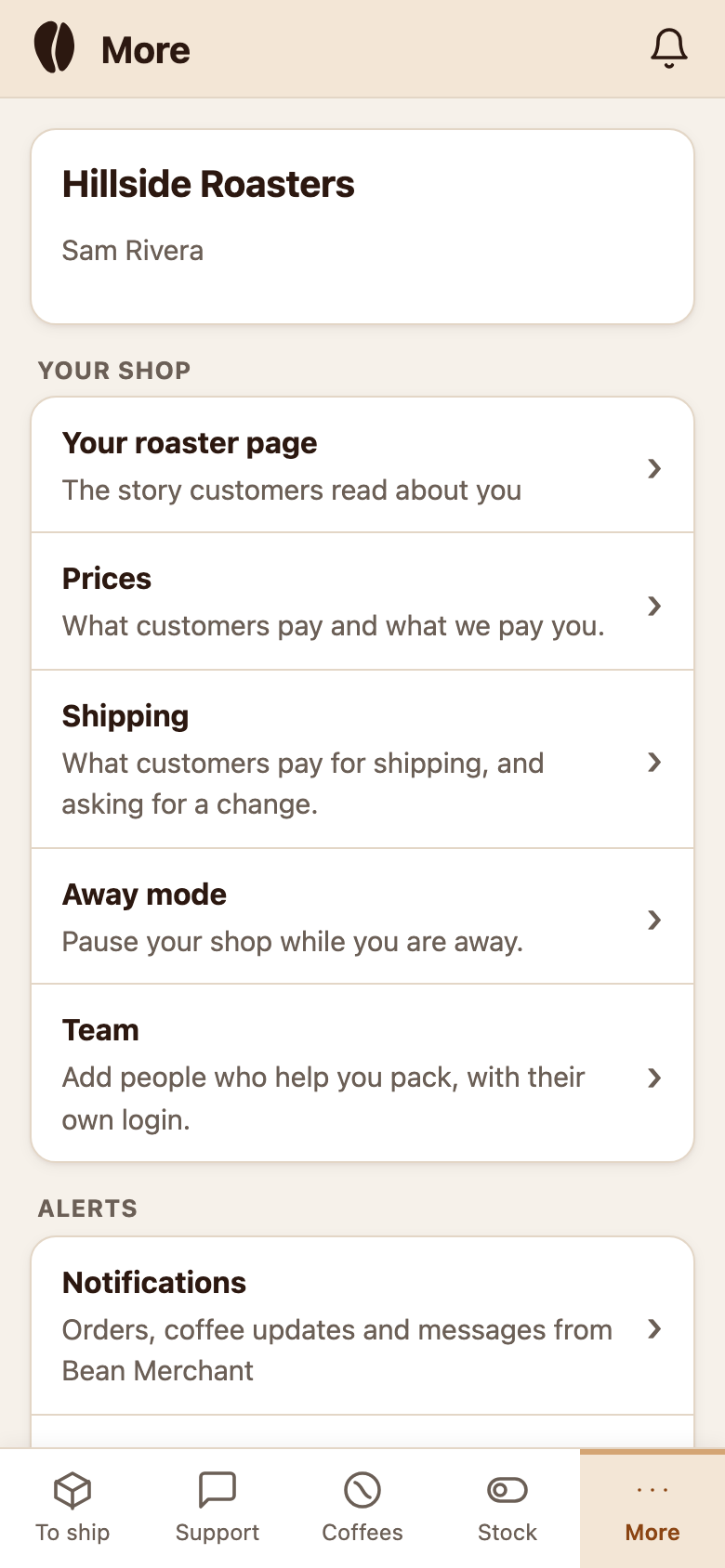
Five tabs run along the bottom of every screen: To ship, Shipped, Coffees, Stock and More. The bell at the top right opens your notifications.
Getting started
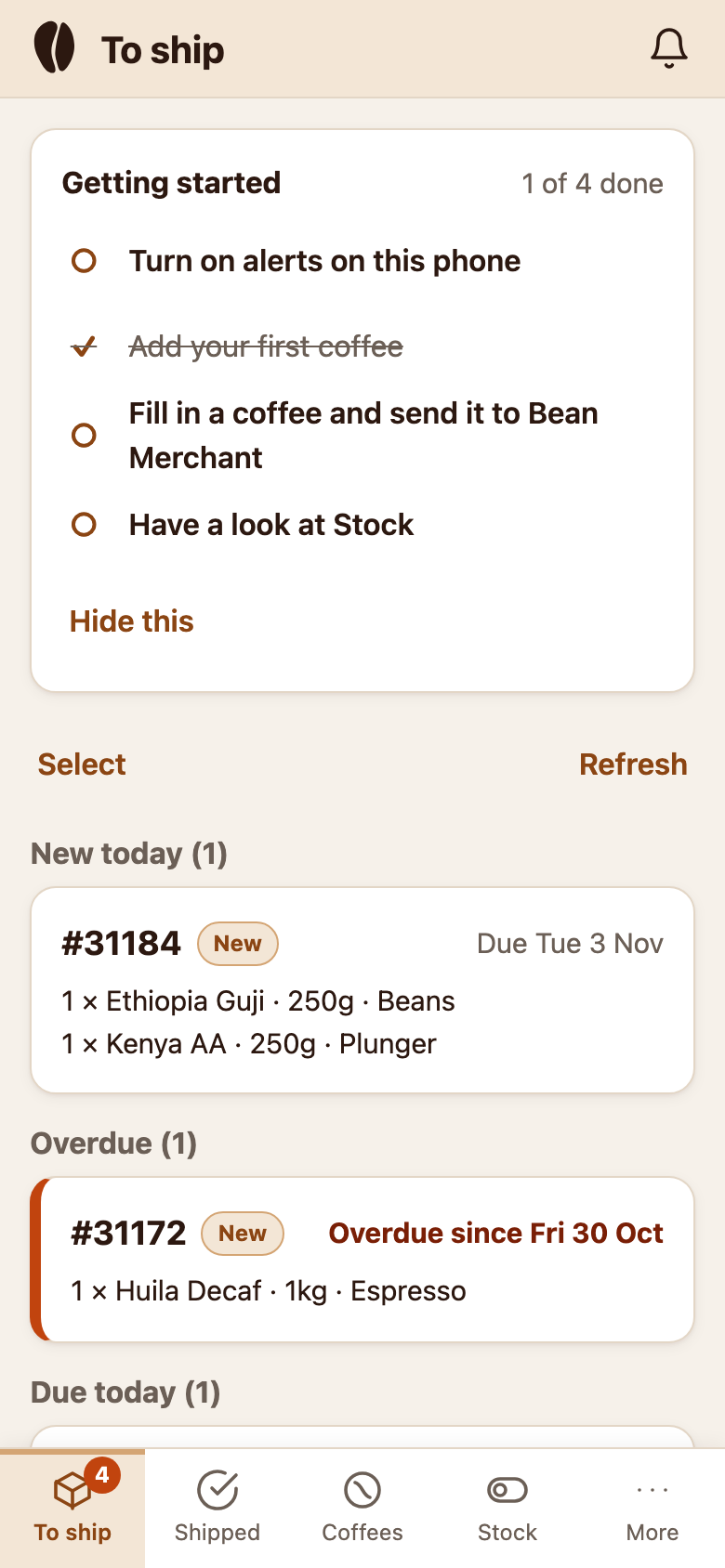
The first time you open the app you'll see a short walk-through for alerts, then a Getting started list at the top of To ship: turn on alerts, add your first coffee, fill one in and send it to Bean Merchant, and have a look at Stock.
Each line takes you to the right screen and ticks itself when you've done it. Hide this puts it away. More › Take the tour again brings it all back.
Orders
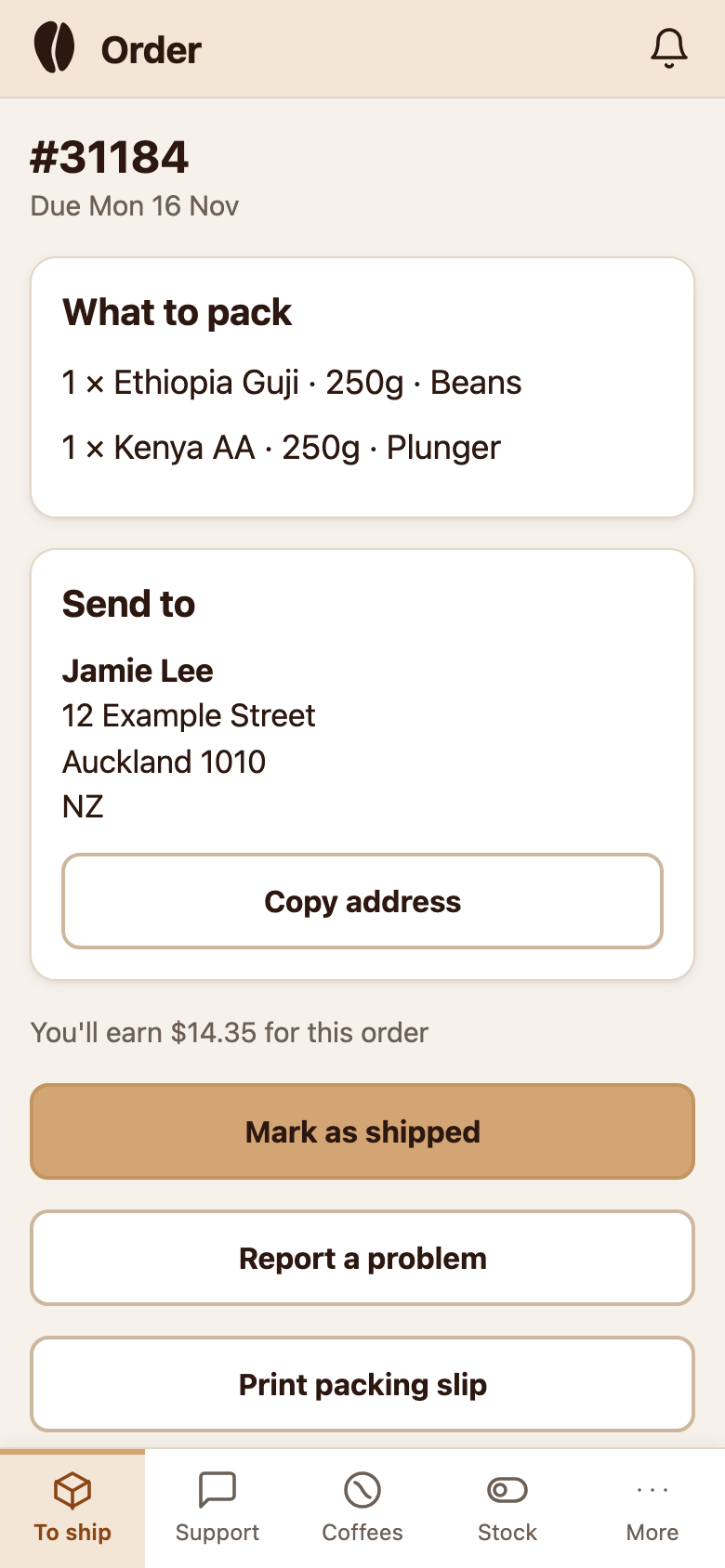
To ship is the home screen: every order waiting for you. Orders that came in today are at the top, then overdue ones, then the rest. Tap an order to see what to pack and where it is going.
- Mark as shipped on an order. You can add a courier and a tracking number, and the customer is sent their tracking details. To ship several at once, use the tick boxes and the bar at the bottom. Shipped shows what you have sent.
- You can print a packing slip and a label from an order.
- Something wrong with an order? Tap Report a problem: I can't send an item, I need more time (pick the day you can send it), or Something else. Jono is told and sorts it out with the customer. Reminders for that order pause.
You will never see a customer's email address or phone number. Jono looks after all contact with customers.
Alerts
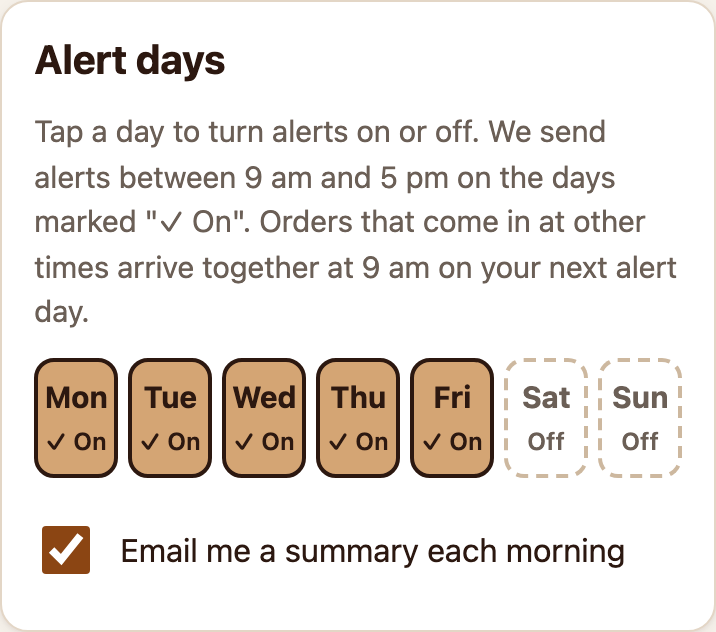
Under More › Order alerts, turn alerts on for this phone. We send them between 9 am and 5 pm on the days you choose. Orders that arrive at other times come together at 9 am on your next alert day.
Tap a day to turn it on or off. A day that is on is solid and says ✓ On; a day that is off is dashed and says Off.
Send me a test alert checks it works. You can also have a short summary emailed each morning.
Notifications
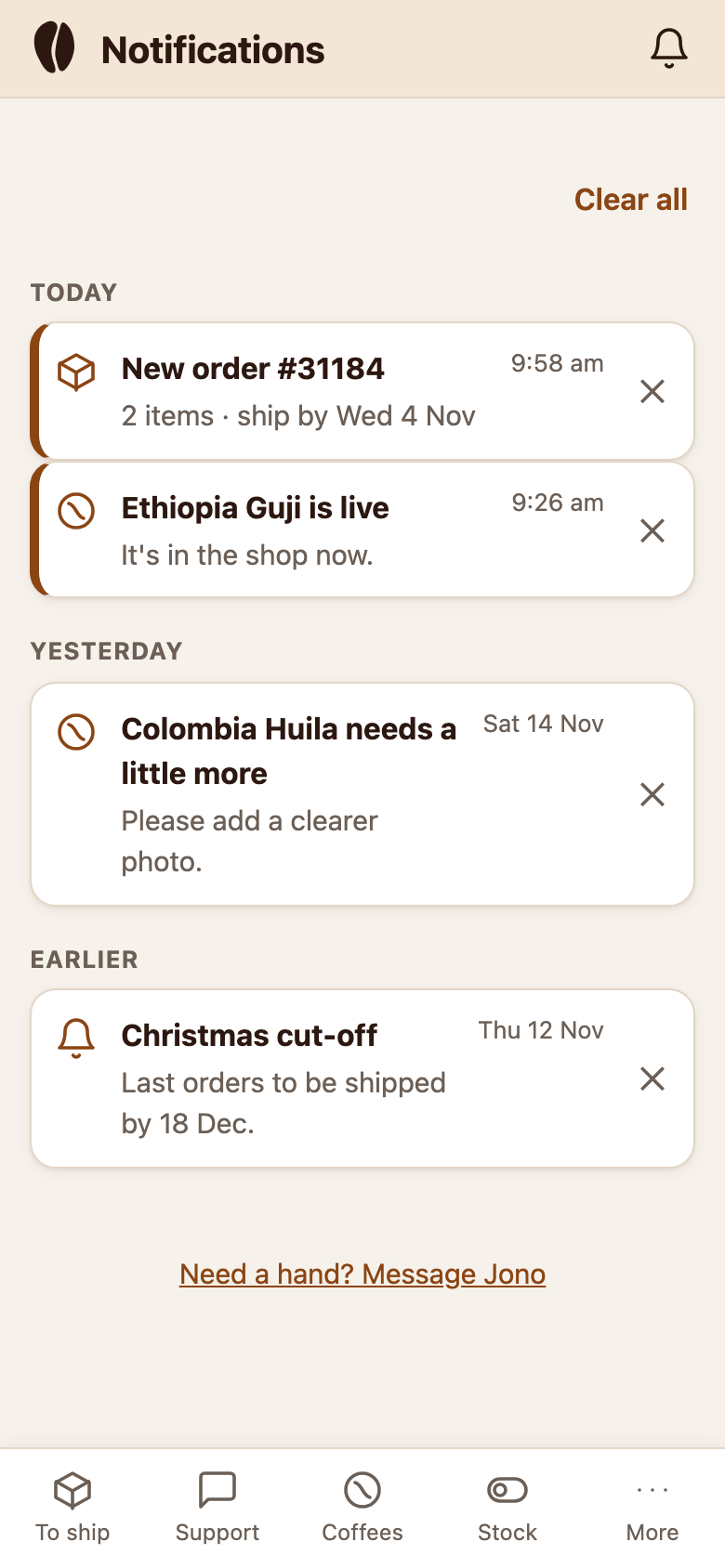
The bell at the top right of every screen shows a small red number when something new has happened: a new order, a coffee approved or sent back, a price decision, a reply from Bean Merchant, or a message from us.
Tap the bell to see the list, newest first, and tap an entry to go to the order or coffee it is about. Opening the list marks everything as seen.
To clear an entry, swipe it to the left or tap the ✕. Clear all empties the list. Clearing is just for you: your staff still have theirs. Entries you don't clear are kept for 90 days.
On an iPhone with the app on the Home Screen and alerts on, the same number shows on the app's icon. Android phones show a dot instead.
Your coffees
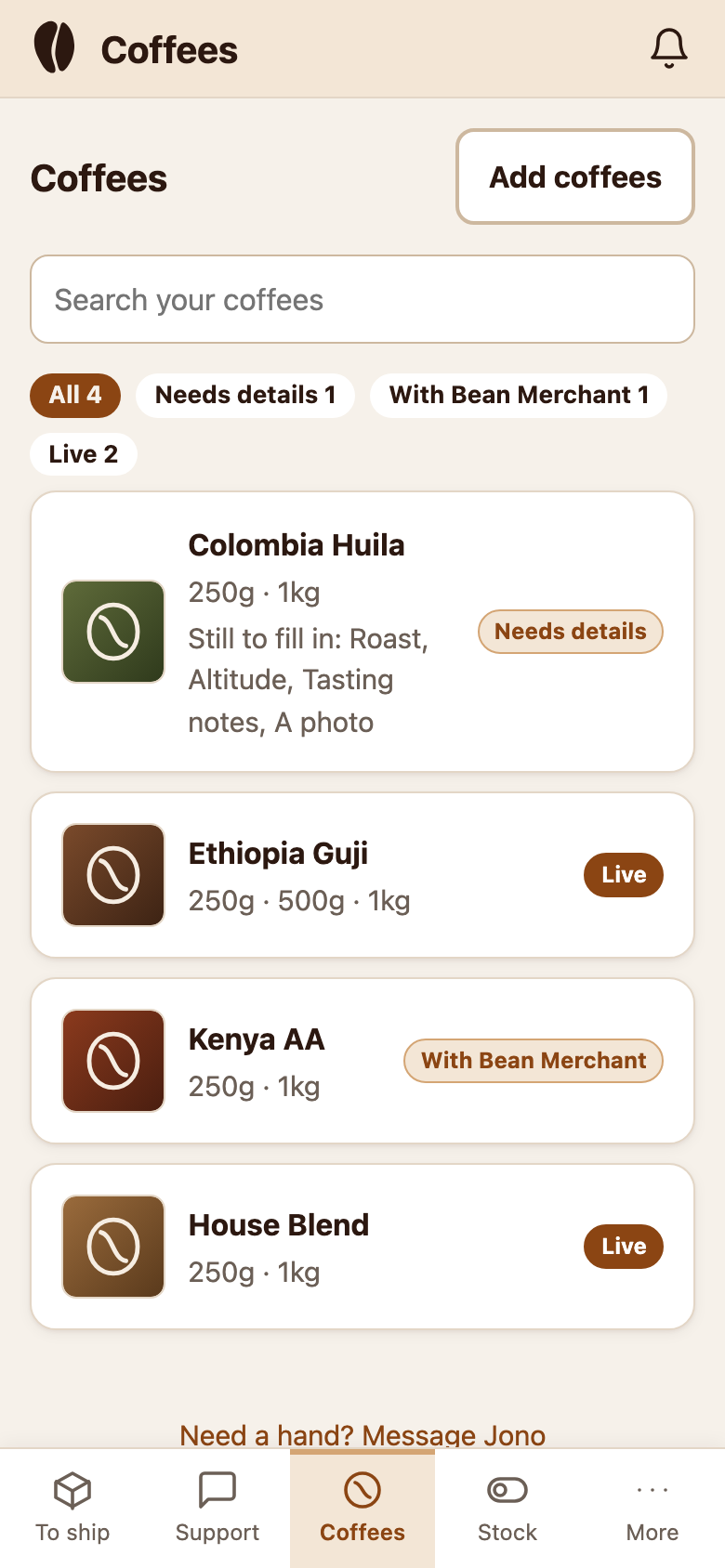
Open Coffees. Each coffee shows where it has got to. The buttons under the search box (All, Needs details, Live and so on) show just one group, with how many are in it.
Coffees you already sell on Bean Merchant appear here as Live once we've brought them into the app for you. If you then upload a file, the app recognises them by name and asks before linking them.
| Status | What it means |
|---|---|
| Needs details | You still have something to fill in. It says what. |
| With Bean Merchant | You sent it. We are checking it. |
| Live | It is in the shop. |
| Needs another look | We tried to put it in the shop and something needs fixing. It says what. |
| Paused | Not for sale. You can restart it. |
Adding coffees
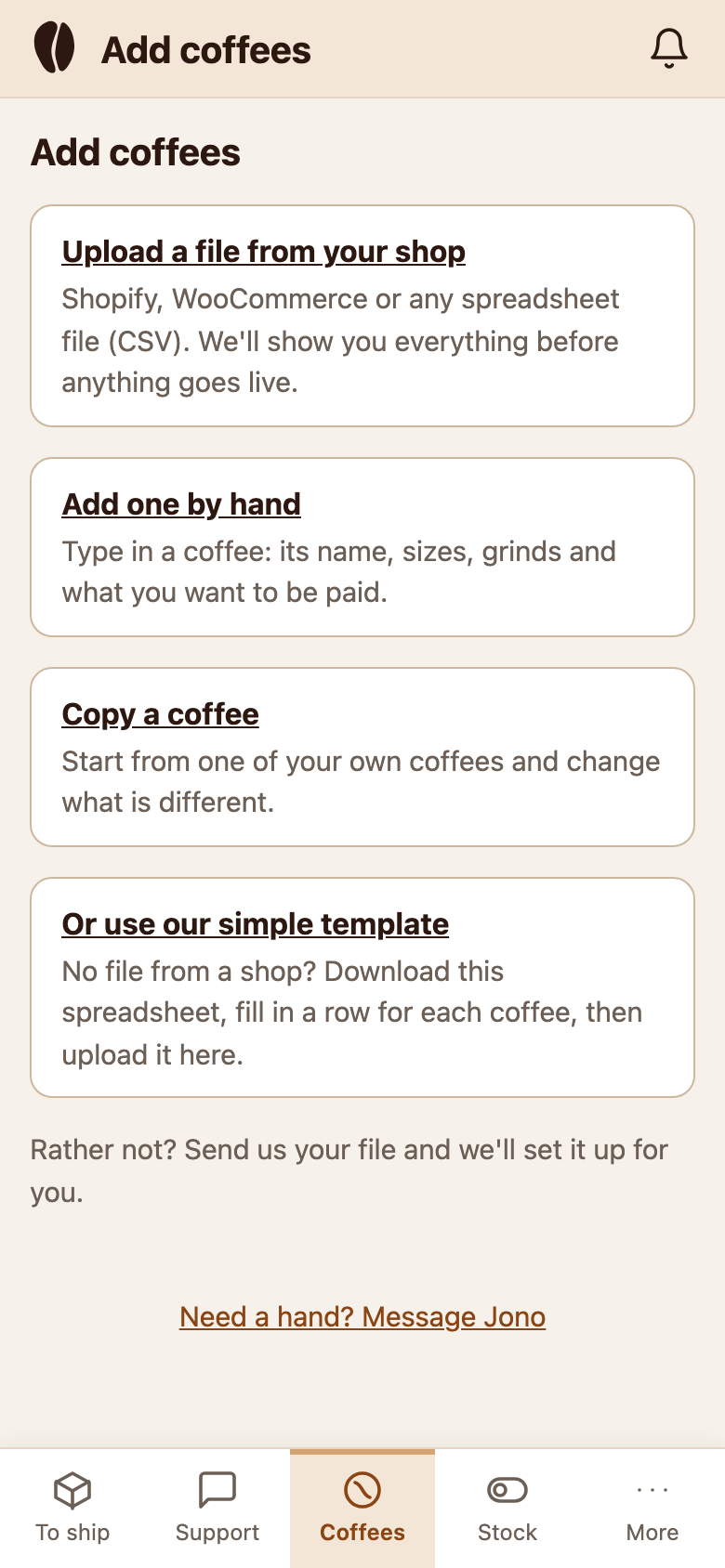
Tap Add coffees. There are four ways:
- Upload a file from your shop. In Shopify: Products, Export, then choose "All products" and "CSV for Excel, Numbers, or other spreadsheet programs". Upload the file. You'll see your coffees with a tick box each, none ticked yet. Tick the ones you want, or tap Tick all that look ready. We leave out drafts, gift cards and anything priced at $0, and say why. Then tap Add. If we aren't sure what a column means, we ask you and remember your answer.
- Add one by hand. Give it a name and a few words, tick the bag sizes you sell and say what you want to be paid for each, and tick the grinds you offer.
- Copy a coffee. Pick one of your own. The copy keeps its sizes, prices, description and details. Give it a new name, then add its own photos and tasting notes.
- Our simple template. Download the spreadsheet, fill in a row per coffee, and upload it. Delete the two example coffees first.
Rather not do it yourself? Tap Send this to us and we'll set it up and Jono will do it. You'll be emailed when it's done.
Filling in a coffee
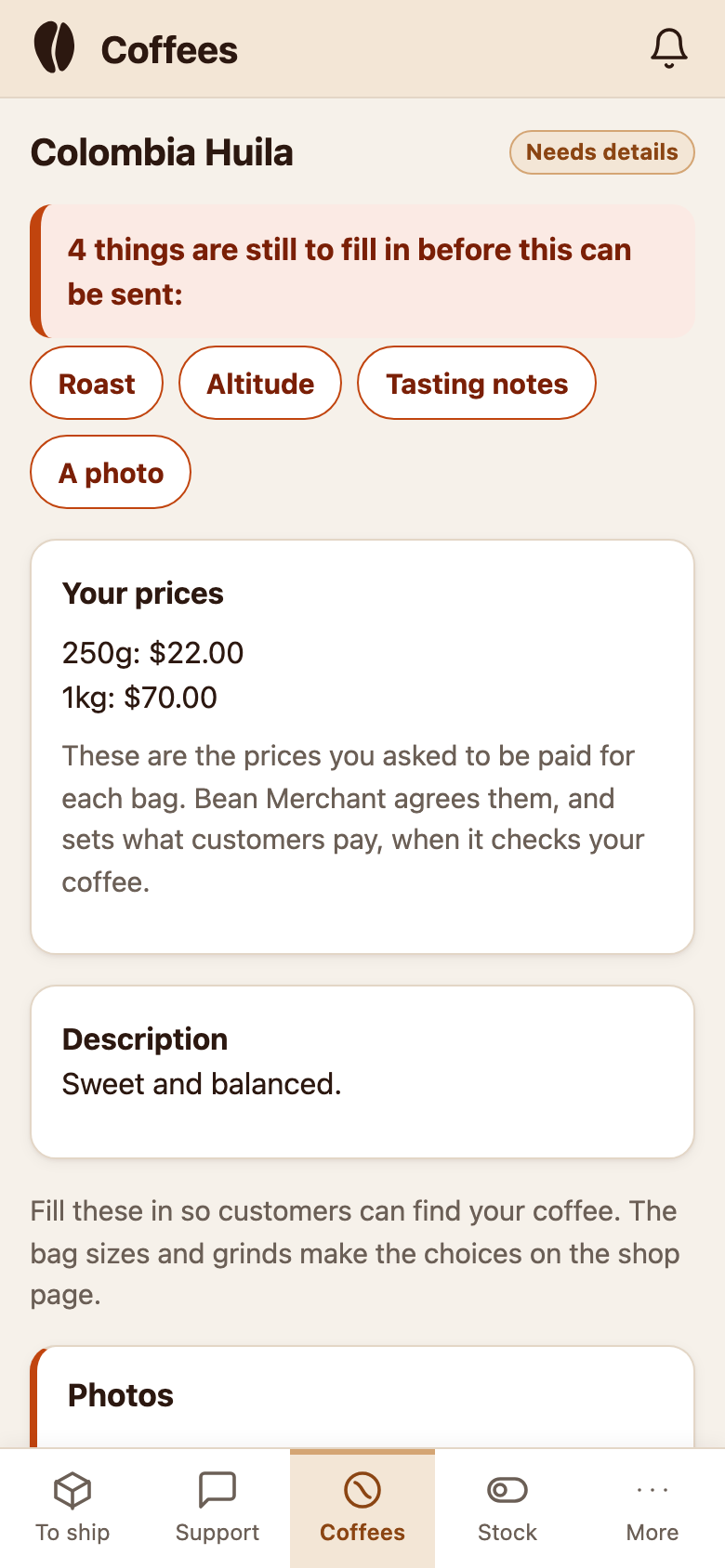
Open the coffee. It is grouped into cards:
- Photos. Add photos from your camera or library; the first is the main one. A coffee needs at least one. We tidy every photo: we remove where it was taken, stand it upright and make it a sensible size.
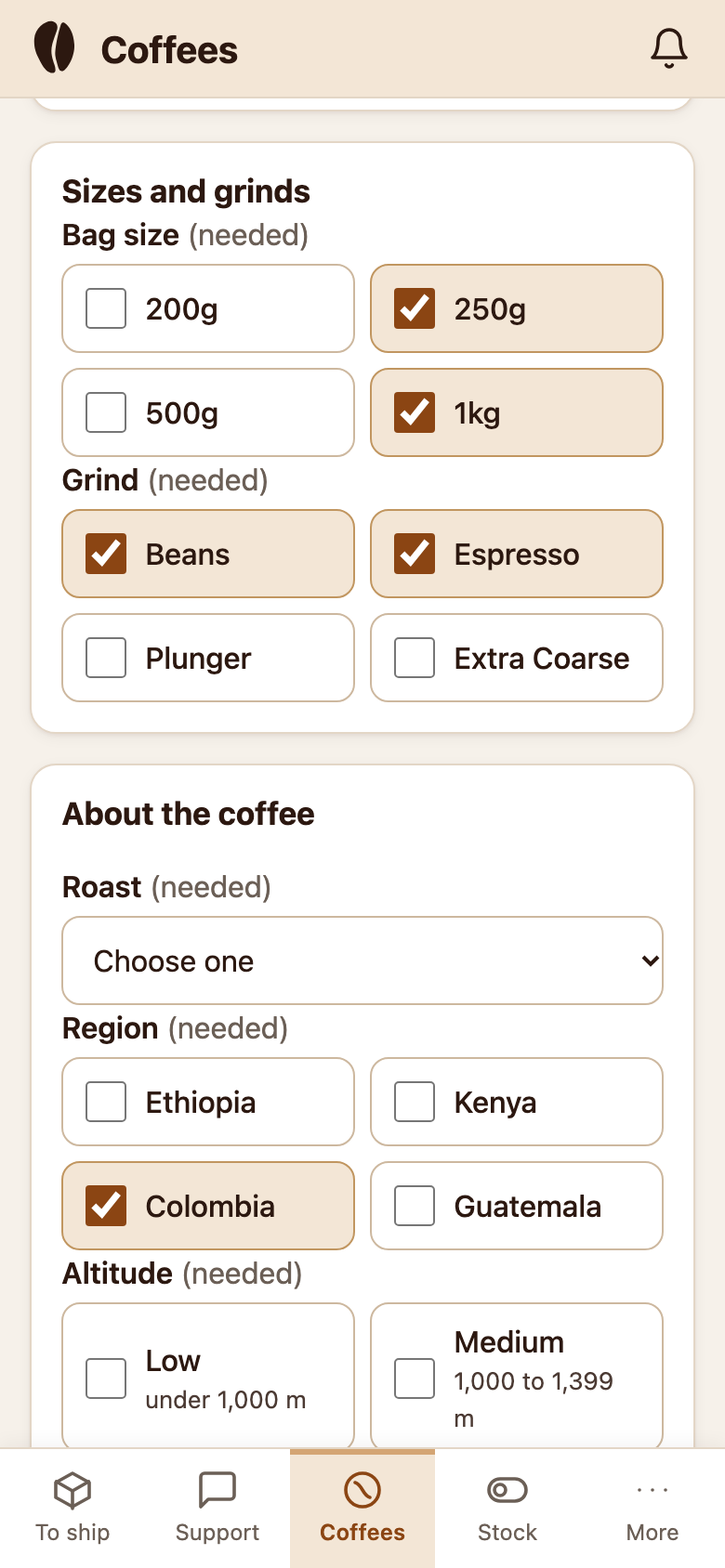
- Sizes and grinds.
- About the coffee: roast, region, process and altitude. Tick everything that applies; altitude shows what each word means in metres.
- Tasting notes: choose two to five, from the notes we already have or your own.
- Brew recipe: under Roasted for, tick Espresso and/or Pourover and give the recipe for each. For espresso: coffee in, coffee out and time. For pour-over: the method, coffee, water and brew time. Customers see it in their order email.
- Type, bean and packaging: the bean, the packaging and, importantly, Coffee type: Decaf or Full strength. That decides which part of the shop it goes in. Certifications are optional.
When everything needed is filled in, tap Send to Bean Merchant. We check it, set the price customers pay and make it live, and you're emailed when it is.
If something is missing when you tap Send, the app lists it at the top of the screen. Tap any name in the list to jump straight to it.
Changing a coffee that is live
- The name, description, details, recipe and photos change in the shop straight away, on both the one-off and the subscription coffee.
- Taking a size or grind off happens straight away, after a question. A coffee always keeps at least one size and one grind.
- Adding a size or grind is a request. A new size needs a price: say what you want to be paid for it, and we set the shop price and add it.
- To change a price, see Prices.
Prices Owner login
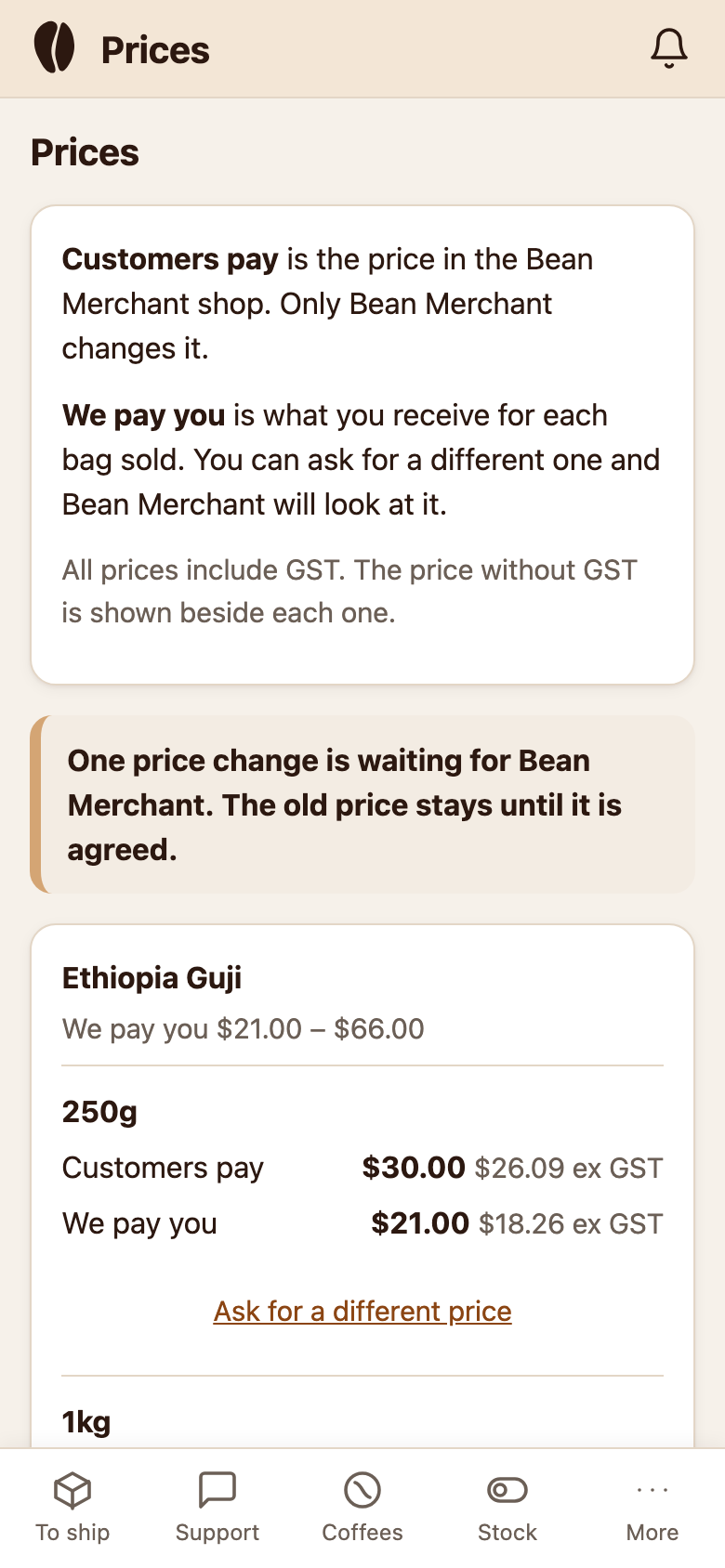
Open More › Prices. For each coffee and bag size you see two prices, both including GST, with the price without GST beside them:
- Customers pay: the price in the Bean Merchant shop. Only Bean Merchant changes it.
- We pay you: what you receive for each bag sold.
To ask for a different price, open a coffee, tap Ask for a different price on a size, type the new one and send it. The old price stays until we agree, and you can withdraw a request while it's waiting. You're emailed what we decide.
A change we agree starts on the day we tell you, normally two weeks later. You're paid the old price until then, and the screen shows the new price and its start day.
Stock
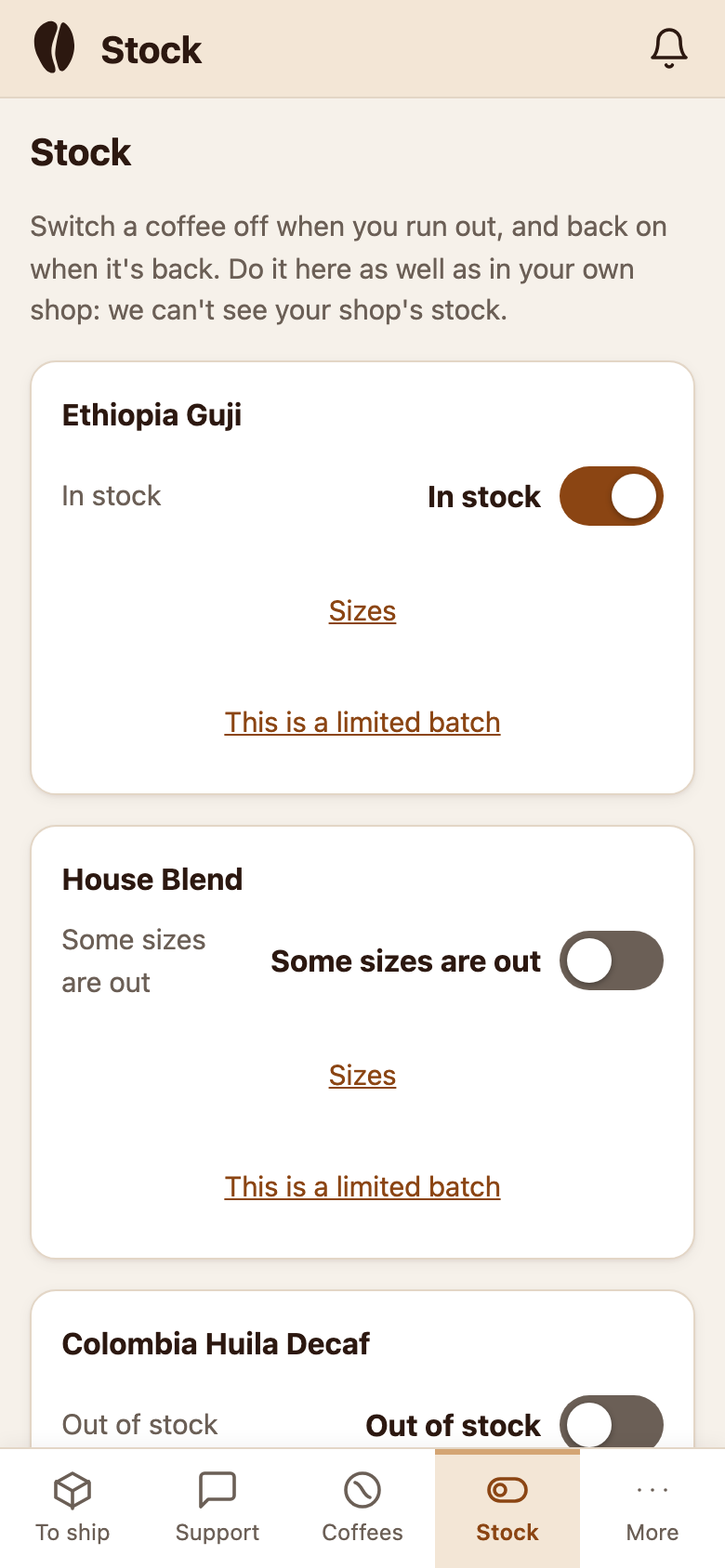
Stock lists the coffees that are in the shop. Each has a toggle: slide it to Out of stock when you run out, and back when it's back. Open Sizes to switch one bag size or grind on its own. Tap All correct when you've checked the list.
Please do this here as well as in your own shop: we can't see your shop's stock.
A limited batch. For a short-supply coffee, tap This is a limited batch and say how many kilograms of roasted coffee are left. We count it down from Bean Merchant orders, switch a size off when a bag no longer fits, and email you when it's running low. If an order is cancelled or refunded, the bags go back. Correct the amount whenever you sell some in your own shop.
Away mode Owner login
More › Away mode. Pick your first and last day away and, if you like, a message for customers. While you're away your shop shows the message, customers can't add your coffees to their cart, and alerts pause. It all comes back the morning after your last day.
Your team Owner login
More › Team. Add people who help you pack, each with their own login and alerts. They can see and ship orders and switch stock, and you can also let them add and edit coffees. They never see what you earn. Remove someone at any time and they're logged out.
For extra safety you can turn on two-step login under More › Your account.
If something goes wrong
- Nothing happens when you tap, or it says it can't connect: check your signal and try again. The app tells you plainly when it's offline.
- An alert didn't arrive: send yourself a test alert, and check your phone isn't on Do Not Disturb or battery saver. You still get emails.
Anything else: message Jono. Every screen in the app has a Need a hand? Message Jono link at the bottom, or email:
The pictures show example coffees and orders, not real ones. Everything described here is what the app does today.